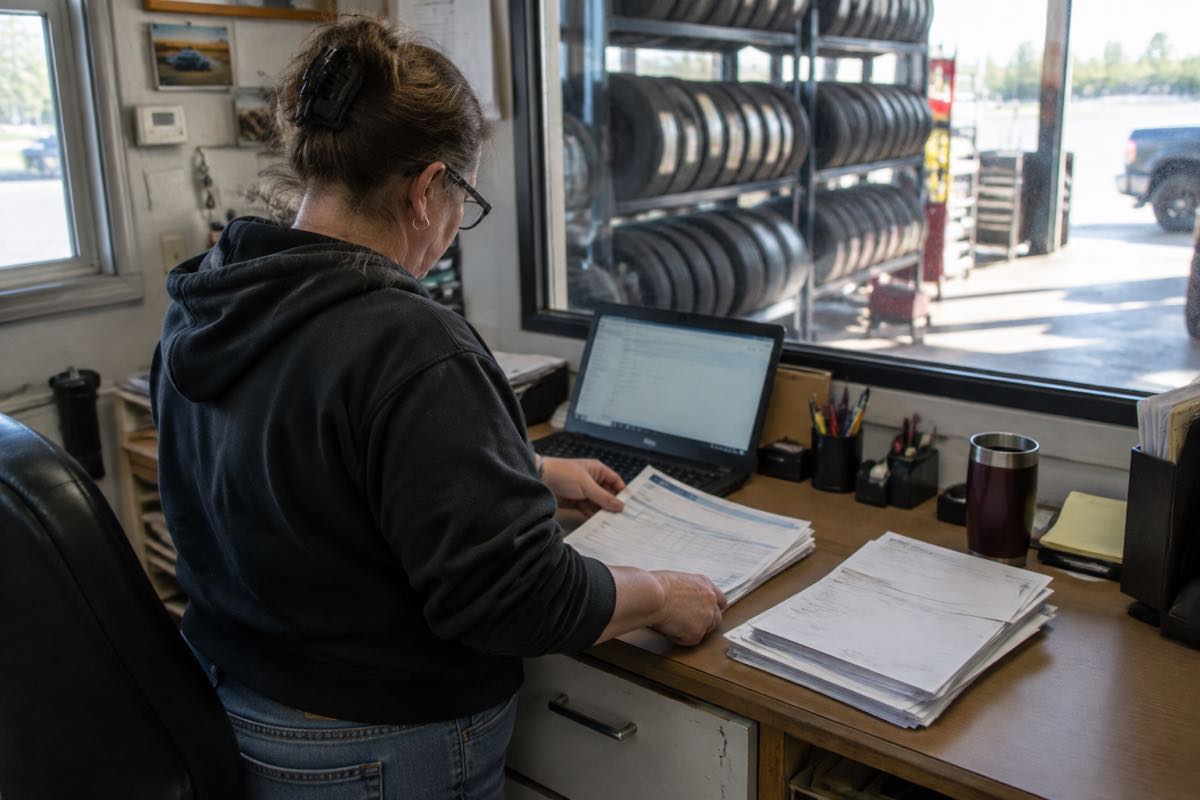

Most owners treat Google Business Profile photos as decoration. They upload a logo and a storefront picture on the day they claim the listing, then forget about them for years. Meanwhile customers keep adding their own pictures, some blurry, some taken on a bad day, and those become the face of the business.
That is a missed opportunity. Photos answer questions a customer would otherwise have to call about. What does the place look like from the street? Is it clean? Who will I be dealing with? A person comparing three listings will often decide based on which one looks real and welcoming.
We should say where we stand. American Business Recognition scores US businesses using public Google ratings and review counts. Photos are not part of our score, and we do not sell photo services. We do sell optional promotional packages, so keep that interest in mind.
Our position is that the best photos for a local business are honest, recent and taken on site, and that a smiling team at work beats any polished stock image. Google's own guidelines point in the same direction.
This guide covers Google's technical requirements, the photo types it recommends, what to avoid, how to handle customer photos and a monthly routine that keeps your profile current.
What Google Asks of Your Photos
Google's photo help page sets the technical basics. Photos should be JPG or PNG, between 10 KB and 5 MB in size. Google recommends a resolution of 720 by 720 pixels, with a minimum of 250 by 250 pixels.
Quality matters as well. Google says photos should be in focus and well lit, with no significant alterations or excessive use of filters, so that the image represents reality. Its tips for business photos add that this includes excessive use of AI.
Videos follow similar rules. Google allows clips of up to 30 seconds and 75 MB, at 720p resolution or higher.
A few practical notes from the same pages are worth knowing. Photos appear publicly only after your profile is verified. New uploads can take 24 to 48 hours to show up. Customers can also add photos, and owners can ask Google to remove customer photos that break its rules.
There is also a set of additional photo and video criteria that applies to everyone who posts on Maps. It says relevant photos and videos are created at the location you are posting about, and asks users to avoid stock photos and imagery created by other parties.
Put simply, Google wants photos that show your actual business, taken by you, without heavy editing.
The Photo Types Google Recommends
Google's tips page lists specific photo types and suggests at least three of most of them. For a typical local business, these categories matter most.
Exterior. Google recommends at least three exterior photos to help customers recognize the business. Take them from each direction customers approach, and at different times of day. A picture at dusk with the sign lit helps evening customers find you.
Interior. At least three interior photos that show what it feels like to stand inside as a customer. For a repair shop, that might be the waiting area, the service counter and a tidy work bay.
Photos at work. At least three photos representative of the services you offer, showing your team providing different services. A technician explaining a repair or a detailer finishing a car shows the work and the people at the same time.
Team. At least three photos of the management team and employees. Google suggests a less formal style to show personalities. Smiling, relaxed faces make a business feel approachable.
Products. At least three photos of products you sell, with your most popular items and even lighting.
For an auto repair, body or tire shop, a strong first set might look like this. The building from the street with the sign visible, the entrance customers use, the waiting area, a clean service bay, a technician talking a customer through a repair, a before and after of body work, and the whole team standing together on a sunny morning. That is around a dozen photos, and most shops can take them in a single afternoon.
Add your logo and choose a cover photo as well. Google notes the cover photo appears at the top of the profile, though it may not always be the first image shown.
Mistakes That Make Photos Work Against You
Several common habits weaken a profile, and some may lead to photos being removed.
Stock images. A generic picture of a smiling mechanic from a stock library tells customers nothing about your business, and Google's criteria ask contributors to avoid stock photos. Customers can usually tell, and it undermines trust.
Heavy editing. Strong filters, dramatic color changes and AI-generated scenes go against Google's request that photos represent reality. Brightening a dark photo is fine. Replacing a cluttered background with an imaginary showroom is not.
Text and collages. Google's criteria advise against borders, collages and added text. A photo with a price list or phone number pasted over it is better turned into a post or a product listing.
Old photos. A storefront from before the renovation or staff who left years ago confuse customers. If the sign changed, the photo should change too.
Poor quality. Google asks users to avoid blurry, excessively dark or rotated images. Clean the phone lens, shoot in good light and hold the camera level.
Ignoring privacy. Ask staff before you post photos of them, and avoid capturing customers' faces or license plates without permission. A quick question at the start of a shoot prevents awkward conversations later.
Taking Good Photos With a Phone
You do not need a professional photographer. A recent phone and a little planning will produce photos that do the job.
Choose good light. Daylight through windows or an open garage door is usually better than overhead fluorescent lights. Avoid shooting straight into the sun.
Tidy first. Spend ten minutes clearing clutter from the counter, the waiting area and the bay you are photographing. Customers will read a clean space as a sign of care.
Hold the phone level and step back. Wide shots of a space are more useful than close-ups that leave the customer guessing what they are looking at. Then take some closer shots of details, such as a finished paint job or a neatly organized tool wall.
Photograph real moments. Ask a technician to explain something to a colleague, or a detailer to work on a car while you take several shots. People look more natural when they are doing their job and not posing. Catch them smiling at a customer or laughing with a teammate, and the warmth shows in the picture.
Take many shots and pick the best. Delete anything blurry or unflattering before uploading. Ten good photos are better than forty mixed ones.
Managing Customer Photos
Customers can add photos to your profile, and many will. Some will be excellent, such as a proud owner with a freshly detailed car. Others will be less flattering.
You cannot delete customer photos yourself, but Google allows you to request removal of photos that break its policies. Inappropriate, off-topic or misleading images may qualify. A photo that is simply unflattering but accurate usually will not, much like a critical review.
The better strategy is to add enough good photos of your own that customer pictures become one part of a fuller picture. If a customer's photo shows a messy waiting room from two years ago, upload a fresh photo of the renovated space.
You can also encourage happy customers to add photos when they leave a review. Keep it simple and honest. Asking every customer is fine. Rewarding only those who post flattering pictures crosses into the same territory as incentivized reviews, which our guide to the FTC fake reviews rule explains.
A Monthly Photo Routine
Photos work best as a steady habit, not a one-time project. A simple monthly routine takes about thirty minutes.
- Check what customers see. Open your profile on a phone and scroll through the photos as a stranger would. Note anything outdated or misleading.
- Add three to five new photos. Rotate through the categories, for example a recent job one month, a team photo the next and a seasonal exterior after that.
- Update the cover photo when something changes, such as new signage, a renovation or a new service.
- Review customer uploads. Report anything that breaks the rules and thank customers who share great photos when they also leave a review.
- Keep a folder. Save your best originals in one place so you can reuse them on your website and social media.
Pair the routine with the rest of your profile work. Our Google Business Profile checklist covers every field, and our guide on ranking higher on Google Maps explains how a complete profile fits into local search.
How Visual Search Is Changing
Customers increasingly look before they call. Photos, short videos and street-level imagery let people inspect a business from their couch, and that habit is likely to grow.
Google's guidance already reflects concern about altered and generated imagery, asking that photos represent reality and avoid excessive AI. We expect authenticity to matter more over time, as edited and synthetic images become easier to produce and easier for viewers to doubt.
That favors the simple approach. Real photos, taken on site, of real people doing their work, are hard to fake and easy to trust. Short videos of the team or a finished job, within Google's 30-second limit, may become as common as photos are now.
Nobody outside Google knows exactly how photos influence where a business appears in search, and we would be skeptical of anyone who claims to. The reason to invest in photos is more direct. They help a customer who has already found you decide to call.
Making Your Photos Work for You
Google Business Profile photos are one of the few parts of your online presence you fully control. Google's guidance is clear. Upload sharp, well-lit JPG or PNG images that represent reality, taken at your location, without stock images, collages or heavy editing.
Cover the categories Google recommends, with at least three exterior, interior, at-work and team photos. Let people see the place they will walk into and the people they will meet. Smiling faces and real work in progress do more than any slogan.
Keep it current with a monthly routine. Add a few new photos, update the cover when something changes, and keep an eye on customer uploads.
Our opening view holds. Honest, recent, on-site photos of a friendly team give customers the confidence to call. Open your profile today, look at it the way a stranger would, and take your first set of new photos this week. After that, see how your rating and review count look on our free score calculator, which measures public reputation and does not use photos.
Questions About Google Business Profile Photos
What size should Google Business Profile photos be?
Google recommends 720 by 720 pixels, with a minimum of 250 by 250 pixels. Files should be JPG or PNG, between 10 KB and 5 MB.
How many photos should I upload?
Google suggests at least three for each main category, such as exterior, interior, photos at work and team. Adding a few new photos each month keeps the profile current.
Can I use stock photos on my profile?
Google's photo criteria ask contributors to avoid stock photos and to upload media captured at the location. Real photos of your business build more trust with customers.
Can I edit my photos before uploading?
Light corrections such as brightness are fine. Google asks for no significant alterations or excessive use of filters or AI, so the image should still represent reality.
Why are my new photos not showing?
Photos appear only after the profile is verified, and Google says new media can take 24 to 48 hours to appear. Check that the files meet the size and format requirements.
Can I remove a customer's photo?
You cannot delete it yourself, but you can ask Google to remove photos that break its policies. Accurate photos that are simply unflattering usually stay, so add better photos of your own.
Do photos affect my ABR score?
No. Our score uses public Google ratings and review counts only. Photos help customers decide to contact you, which can lead to more reviews over time.
This article is general information and is not legal advice.